UI Exploration
APEX — my first UI
design exploration.
Strategy
UI Practice
Design
UI Design, Figma
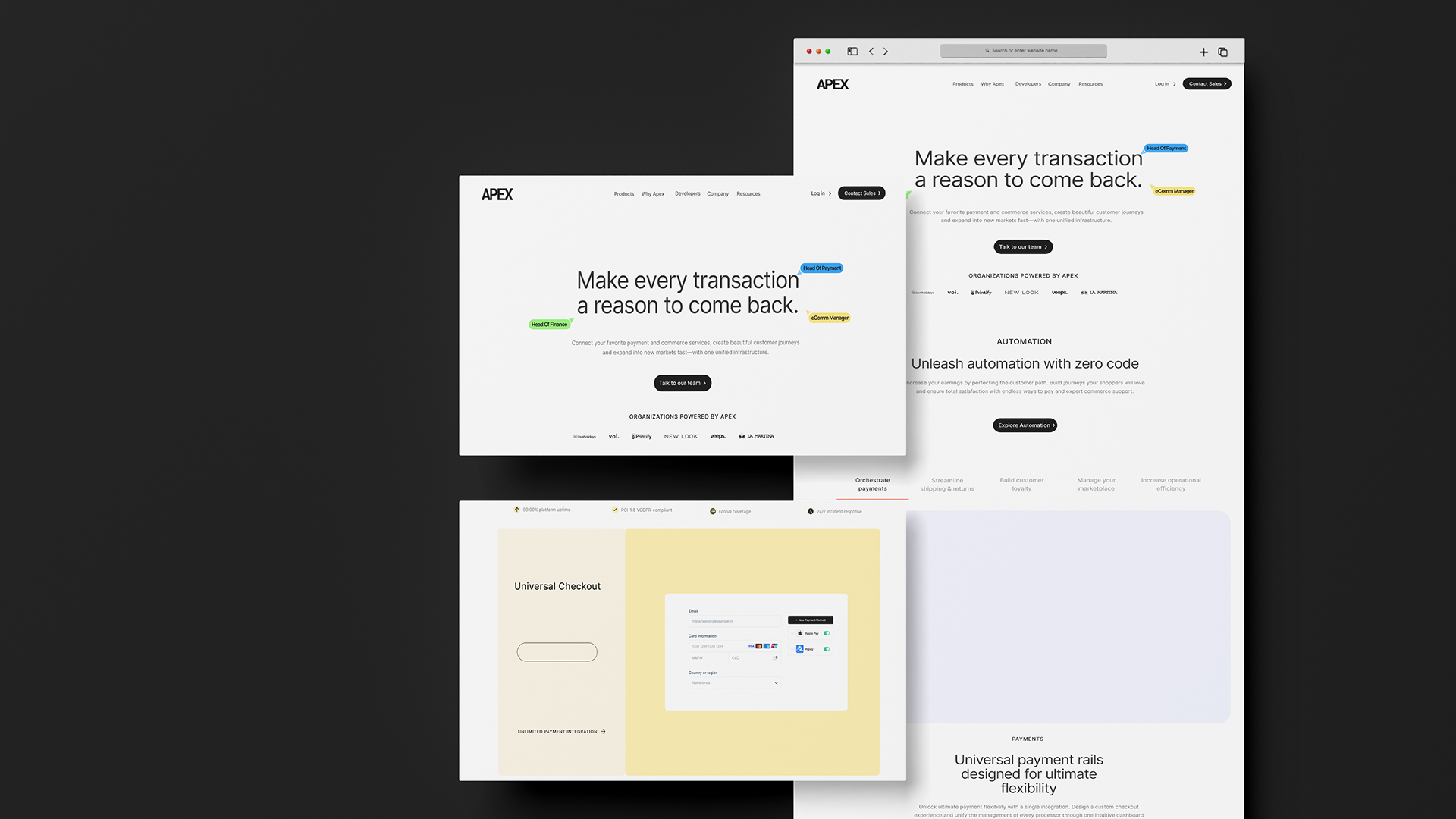
My first self-directed UI exercise in Figma. I gave myself three days to design a fintech landing page from scratch — mostly to get better at layout, spacing, type, and working with components. No client, no brief, just a focused practice run.
01
Context
Learning UI by building a landing page that actually had to sell something.
When I started learning UI, I wanted a project that felt real, not just another Dribbble shot. Fintech landing pages are everywhere, so there was plenty to compare against. They also force you to show trust, clarity, and professionalism without hiding behind effects.
APEX is a made-up payments brand I used for the exercise. I built the whole landing page in Figma over three focused days.
02
Problem statement
Most beginner UI work ends up looking like a mood board instead of a real page.
I wanted to go beyond decoration and build one page that actually held together — clear hierarchy, easy to scan, and the kind of thing a real product team would look at twice.
A few things were harder than I expected: arranging content so it made sense, keeping the layout clean, spacing things evenly, picking type sizes that worked together, and staying simple without making it feel empty.
03
Crafted solution
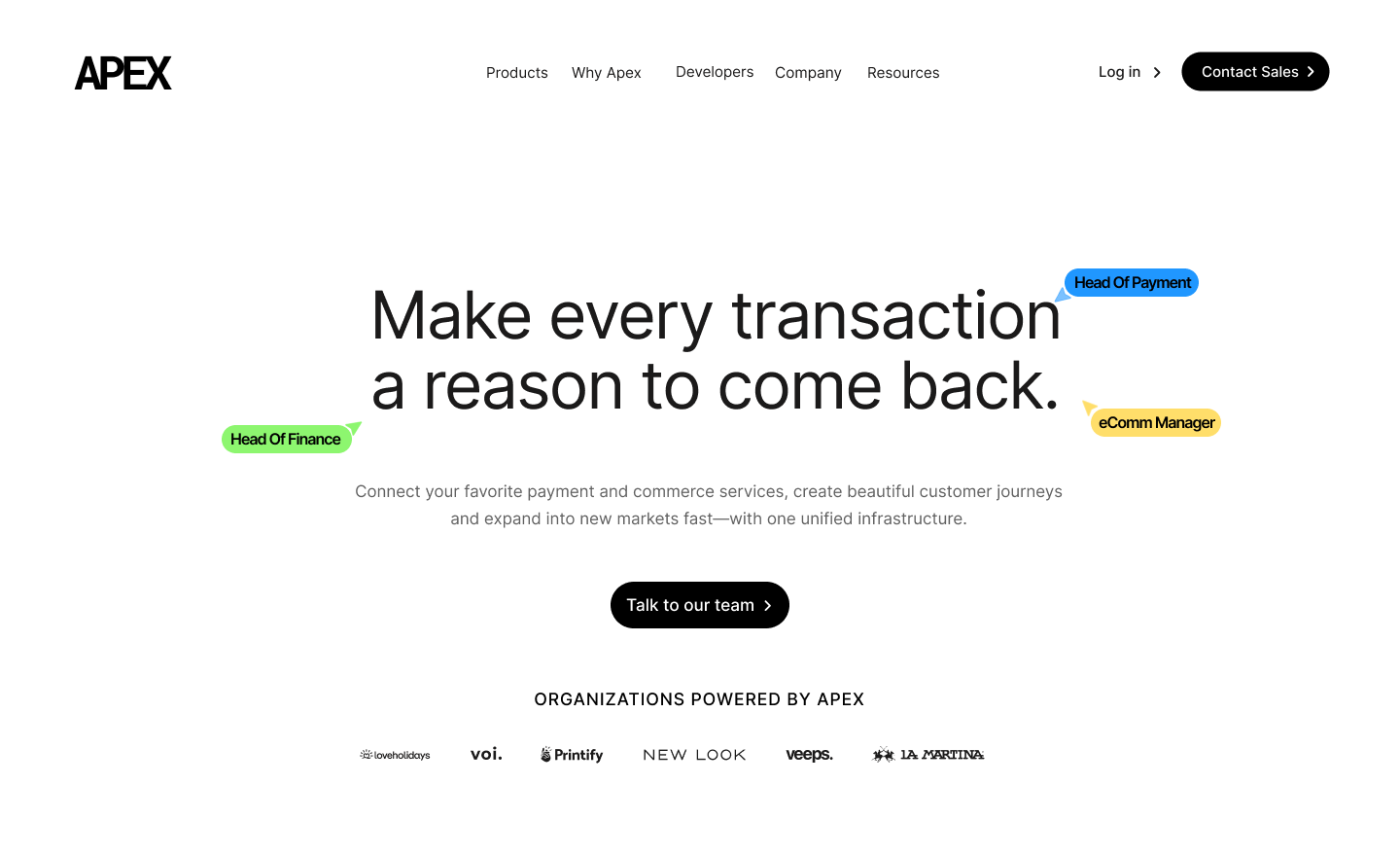
A clean, high-contrast landing page with one strong hero and a repeating set of components.
04
The story
How I got there.
Three focused days, one Figma file, no client — just a clear structure and a lot of looking at what already works.
Role
UI Designer
Duration
3 Days
Team
Solo
Tools
Figma
05
Project overview
Nine sections, one hero, one accent colour, and one goal: make someone trust the product before they scroll to the bottom.
- Hero01
- Trusted companies02
- Automation features03
- Product overview04
- Payment solutions05
- Feature cards06
- Analytics07
- Merchant stories08
- Footer09
06
Research
I studied fintech landing pages before I opened Figma.
I did not try to invent everything. I collected a dozen references — Stripe, Razorpay, Wise, Ramp, Mercury — and watched for the patterns they all used.
Large headlines
Anchoring each section with a single, confident sentence.
Generous whitespace
Letting the eye rest between blocks instead of filling every pixel.
Product screenshots
Showing the actual product, not abstract illustrations.
Card-based layouts
Modular feature blocks that repeat with rhythm.
07
Analysis
Fintech pages win trust by keeping things calm, not by adding more decoration.
The landing pages I trusted most did three things: one confident headline, the product shown early, and a single accent colour so anything highlighted felt deliberate.
The ones I did not trust used gradients, glass effects, and overlapping visuals to look fancy — exactly the trap beginners fall into.
08
Brainstorming & ideation
Four rules I set before I started designing.
- 01
One hero sentence that promises a real, measurable outcome — not a slogan.
- 02
A trust strip of familiar logos immediately below to soften the fintech skepticism.
- 03
Feature blocks paired with product screenshots instead of stock icons.
- 04
A single yellow accent used sparingly so it actually means something.
09
Sketches & wireframes
I sketched the whole page as grey blocks on paper first.
Because the reference sites shared so much structure, I mapped the whole page as grey blocks in a notebook before touching Figma. That made it easy to move sections around in minutes.
I didn't do a formal wireframe step for this exploration — the paper sketches went straight into a Figma frame set to the final canvas size. That was a deliberate tradeoff for a 3-day scope; in a real client project I'd run a proper wireframe round.
10
Final designs
The full landing page.

11
Design system
A small set of reusable components.
Color. White for the background, black for text and buttons, a warm yellow used only for highlights, and a soft grey to separate sections without adding noise.
Typography. Big display headings for each section, with a smaller body size for the rest. The contrast in size is what creates the hierarchy.
Spacing. An 8-point spacing rhythm across the whole page. Generous space between sections, tighter deliberate space inside components.
Components. Buttons, nav items, feature cards, and product previews were all reused — a small first taste of what a design system actually feels like.
12
Prototype
Click-through prototype linking hero → features → CTA.
A lightweight Figma prototype linking the main CTAs, so I could feel the scroll rhythm and check if the page held attention from top to bottom.
13
User testing
Two peers and one mentor looked through the page.
Since APEX is a personal project, I ran a quick feedback session with three people — five minutes each, three questions: what does this company do, would you trust them with your money, and what would you click first.
All three answered the first question correctly from the hero section — a sign the headline and product screenshot were doing their job. The trust question had mixed answers, which shaped the improvements below.
14
Conclusion
Good UI isn't about adding more — it's about making information easier to understand.
What I learned
- Auto Layout
- Consistent spacing
- Grid alignment
- Typography hierarchy
- Card layouts
- CTA placement
- Component reuse
- Landing-page structure
Where I struggled
Choosing spacing between sections.
Keeping the layout balanced across the page.
Picking type sizes that felt right together.
Organising information so it could be scanned, not just read.
15
Scope of improvements
What a second version would add.
- Add responsive mobile and tablet versions.
- Define a complete design system with tokens, components, and states.
- Improve accessibility — contrast ratios, focus states, and reduced motion.
- Design realistic interactions and hover / loading / empty micro-states.
- Run a small round of user research before the next iteration.
- Add light usability testing on the primary CTAs.